OCR can make a scanned PDF searchable while still misreading a digit. A searchable text layer is not proof that the numbers are right.
Keep the original scan as your source of truth. Adobe’s guidance is to compare important totals, dates, names, and account numbers with the original image before using extracted data.
Start with a copy, keep the original
Work on the OCR copy. Keep the original scan untouched, and do not save over it. If you need to re-run OCR later, you will still have the clean original.
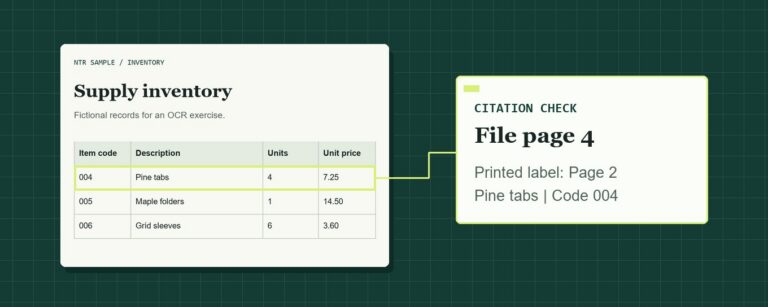
Use the site’s synthetic practice files for this exercise: the scanned PDF practice file and the expected CSV. The table is on file pages 3 and 4. Item 004 is on file page 4, printed Page 2. Use the file page when you open the PDF, and the printed page only to read what is printed on the page.
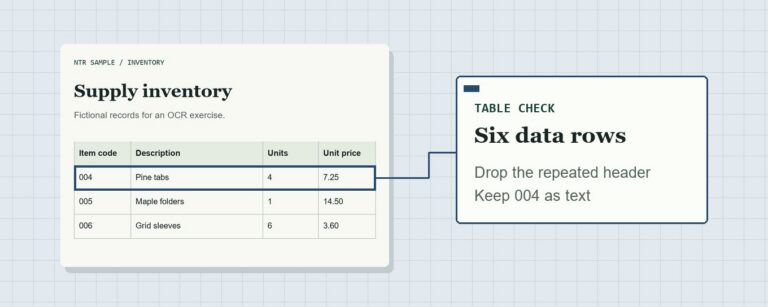
Check the six rows cell by cell
Expected result. We checked the practice CSV and Adobe’s documentation. We did not run OCR on the practice PDF.
Open the original page image on one side and the OCR text on the other. Compare the same cell in both places. Start with the first row, then work down, one row at a time.
| Code | Description | Units | Unit price | Line amount |
|---|---|---|---|---|
| 001 | Maple folders | 3 | 14.50 | 43.50 |
| 002 | Cedar labels | 5 | 2.05 | 10.25 |
| 003 | Birch envelopes | 2 | 8.10 | 16.20 |
| 004 | Pine tabs | 4 | 7.25 | 29.00 |
| 005 | Maple folders | 1 | 14.50 | 14.50 |
| 006 | Grid sleeves | 6 | 3.60 | 21.60 |
Line amount is Units multiplied by Unit price. The line amounts above are arithmetic from the expected CSV, not OCR output, and they are not printed on the scanned pages. The scanned pages show only Code, Description, Units, and Unit price. Check those four cells against the image, then recalculate each line amount from Units × Unit price.
If a cell is unclear in the image, mark it unconfirmed. Do not guess it, and do not change another cell to make the totals match.
Watch for look-alike characters
OCR mistakes are often look-alike characters, not random text. Watch for 0 read as O, 1 read as l or I, 5 read as S, 8 read as B, and a decimal point read as a comma or missed altogether. A wrong character in a code or a price changes the meaning; a wrong character in a description is usually easier to spot.
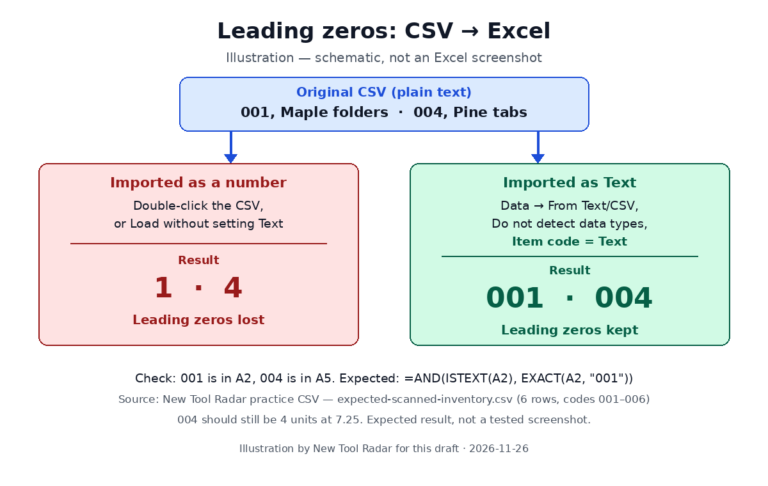
Check codes as text: 001 is not 1, and 004 is not 4. If a code lost its zero, first confirm what the image says, then check whether the loss happened in OCR, in the export, or in the import. The import step is covered separately in How to Keep Leading Zeros When Importing a CSV into Excel with Power Query.
Do not merge the two Maple folders rows. Codes 001 and 005 are distinct records with the same description, different quantities, and different line amounts. A description match is not a duplicate.
Add up the two totals
After the cell-by-cell check, add up the totals. They are a second check, not a replacement for the first one. The totals are derived from the correct sample; they are not printed on the scanned pages.
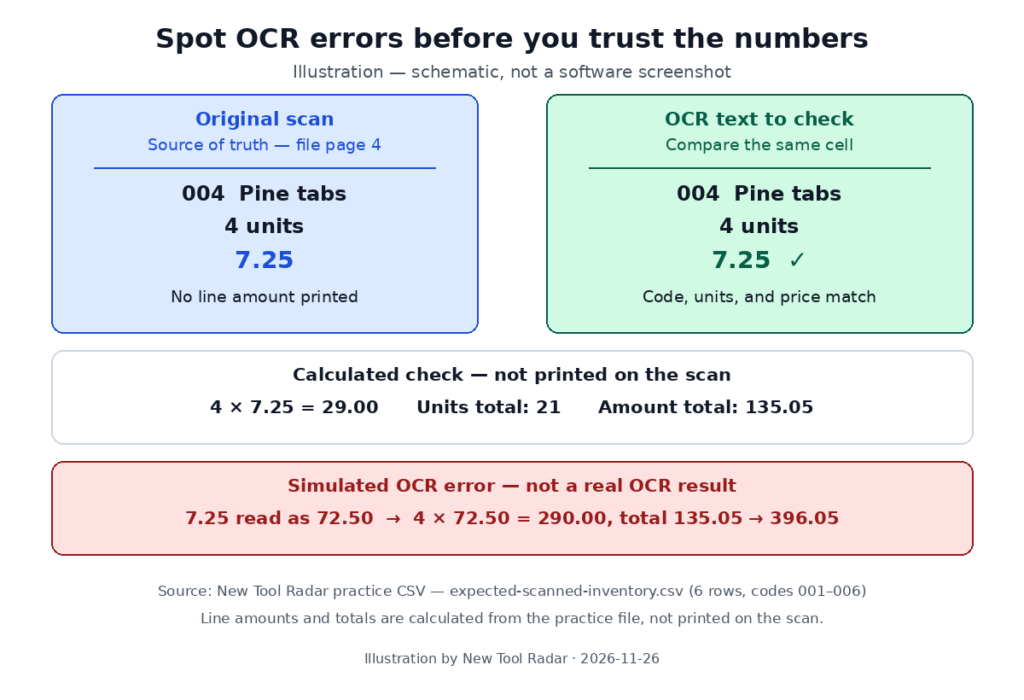
- Units total: 3 + 5 + 2 + 4 + 1 + 6 = 21
- Amount total: 43.50 + 10.25 + 16.20 + 29.00 + 14.50 + 21.60 = 135.05
Try one simulated misread
Try this on the practice numbers, as a human-made demonstration, not the output of any OCR software. Item 004 on file page 4 (printed Page 2) is 4 units at 7.25, so the correct line amount is 4 × 7.25 = 29.00. If the OCR copy read 7.25 as 72.50, the line amount would become 4 × 72.50 = 290.00, and the amount total would become 135.05 − 29.00 + 290.00 = 396.05. That decimal-place error changes the total by 261.00.
Totals can also miss errors. For example, if 001 Units were read as 2 instead of 3 and 005 Units as 2 instead of 1, both rows are Maple folders at 14.50, so the Units total would still be 21 and the amount total would still be 135.05, even though two cells are wrong. That is why the totals are a second check, not a replacement for the cell-by-cell check.
If a total does not match, re-check the rows in order. Do not change a single cell to force the total to match. A total can catch a wrong digit, but it cannot prove every cell is right: two errors in opposite directions could cancel each other out.
When to re-run OCR instead of fixing the text
Fix an isolated wrong cell by hand, and record what you changed. If the same mistake repeats across rows, or errors appear in many cells, do not patch the whole table by hand. Re-running OCR is the safer next step.
Adobe notes that OCR has a harder time with low resolution or blur, poor or uneven lighting, a page captured at an angle, decorative or unusual fonts, busy backgrounds or low contrast, handwriting, and the wrong OCR language. Check the document language first: it should match the language on the page. Then try a cleaner source — enhance the scan, or re-scan the original page if you still have it — and run OCR again. After re-running, repeat the six-row check and the two totals from the start. Do not assume the second run fixed everything.
Limits
- This check does not rate any OCR product, and it does not measure OCR accuracy on your scan. It checks one OCR output against one original image.
- It does not fix merged cells, reading order, or a table that Power Query did not detect. For the export step, see Convert Multi-Page Scanned PDF Tables to Excel.
- It does not cover importing a CSV into Excel without losing leading zeros. For that step, see How to Keep Leading Zeros When Importing a CSV into Excel with Power Query.
- It does not cover checking an AI chat answer against its cited page. For that step, see Chat With A Scanned PDF and Verify Page Citations.
- If the document is private, use a synthetic sample first. Do not upload a real contract, invoice, or meeting record to an online tool to test a workflow.
Sources
- Extract key data from scanned PDFs with OCR – Adobe Acrobat – OCR adds machine-readable text you can search, select, copy, and extract; compare important totals, dates, names, and account numbers with the original image before using extracted data; when OCR returns missing words, strange characters, or text in the wrong order, a cleaner source helps.
- Scanned PDF practice file – New Tool Radar synthetic practice file; the table is on file pages 3 and 4.
- Six-row practice CSV – New Tool Radar expected values, codes 001 to 006.