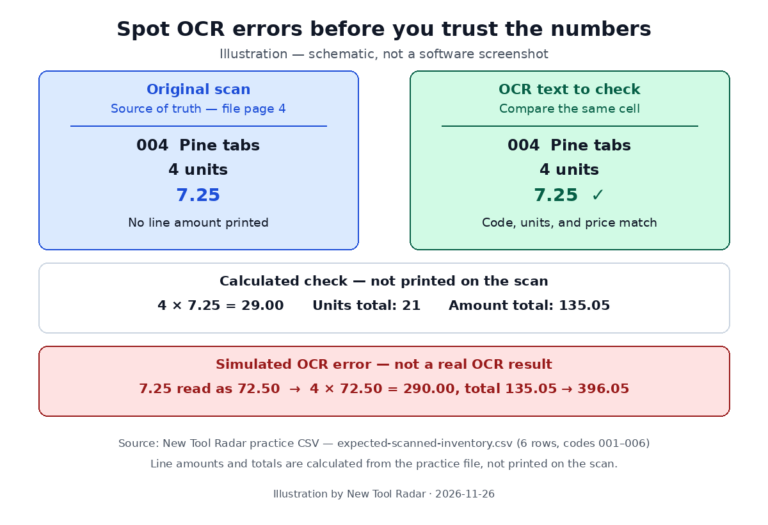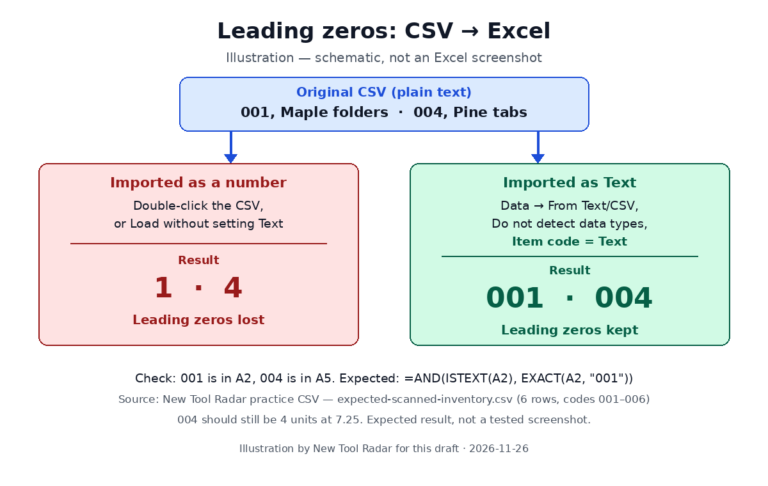
There are two jobs in a scanned PDF export: read the cell contents, then preserve the row and column structure. A result can look tidy and still omit a row, move a decimal, or turn item code 004 into the number 4.
Start with the right input
Try to select and copy a row on the page that contains the table. If nothing usable copies, treat that page as image-only until you have verified otherwise. The cover might already have a text layer while the table does not.
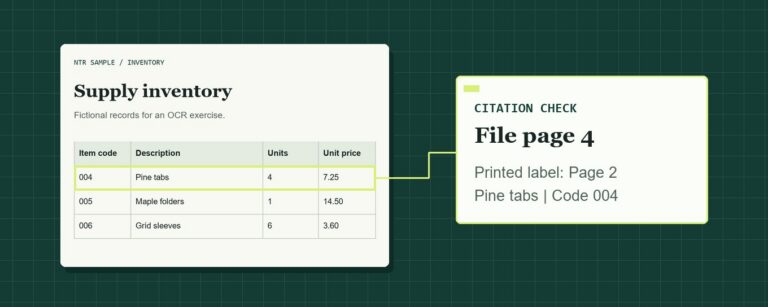
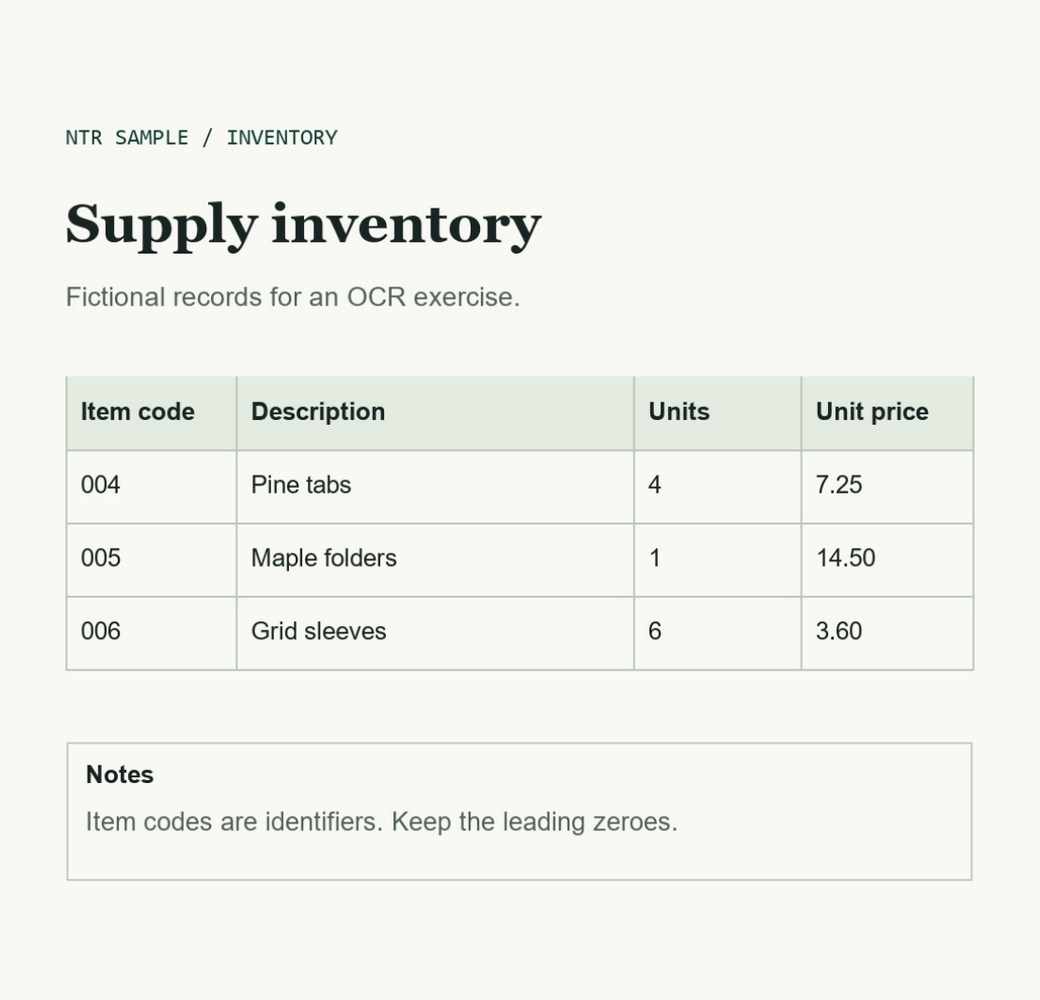
Use the practice PDF and expected six-row CSV to check an OCR or Excel workflow. The sample table is on file pages 3 and 4. When importing the CSV to Excel, set Item code to Text before loading it, or Excel may remove the leading zeroes.
Power Query says no tables found
- Check that you picked the intended file and page range. Open a page with the actual table, not only the title page.
- Compare what you can select in the PDF viewer with what appears in the connector navigator. The PDF connector is not a general-purpose OCR engine.
- For image-only pages, add OCR before retrying the PDF import, or use a separate image-to-grid workflow. Excel’s Data from Picture is a different feature from the PDF connector and is subject to platform and version availability.
- If the display lists a page but not a usable table, inspect the page output. You may need to reconstruct columns instead of treating every visible grid as a detected table.
Rule out a missing text layer first
If the table pages are images, run OCR or use image-based table recognition before expecting a usable Excel table. Selecting a different page range won’t add a text layer. If you can already copy clean text from the target pages, narrow the import to those pages and inspect the table and page previews before reconstructing columns.
| File page | Text extraction | Embedded images |
|---|---|---|
| 2 (exercise notes) | 192 non-whitespace characters | 0 |
| 3 (printed Page 1) | 0 characters | 1 |
| 4 (printed Page 2) | 0 characters | 1 |
We checked the original practice file with pypdf, without OCR. These measurements verify the PDF’s text layer, not Power Query’s output or any OCR product’s accuracy. You can repeat the comparison using the practice file above; automatic OCR in a viewer may show results even when the original file has no text layer.
For PDFs that do have usable text, Microsoft’s PDF connector reference documents the StartPage and EndPage options. Try the smallest relevant range when a large PDF is slow or the preview looks wrong, then check the exported rows against the known result below.
Compare the exported workbook
| Check | Expected result for this sample |
|---|---|
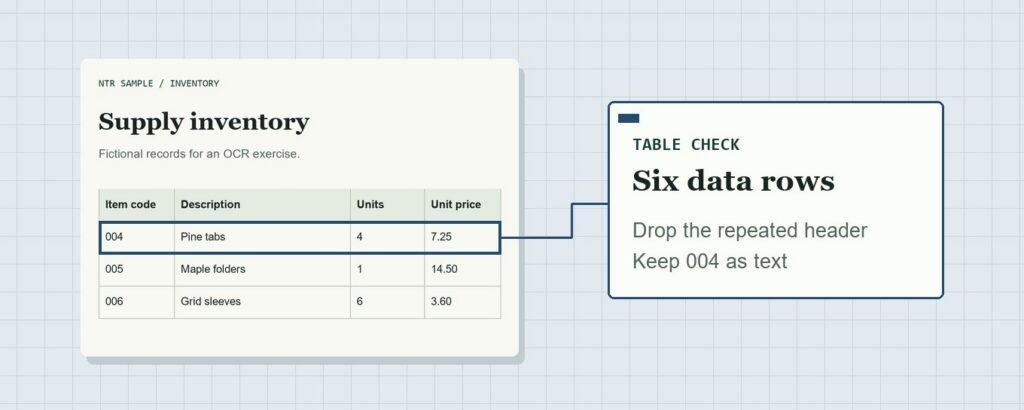
| Record count | Six data rows. Keep one header, not the repeated header from page 4. |
| Item identifier | Codes 001 through 006 remain text. The two Maple folders rows are distinct records. |
| Numeric spot check | Item 004 has 4 units and a unit price of 7.25. |
| Editable structure | Item code, Description, Units, and Unit price occupy separate columns. Cells are editable, not images. |
For a real scan with merged cells, first decide what the exported rows should mean: preserve the group as a header, or repeat its label beside each record. This sample does not test merged source cells.
Related: check for a PDF text layer and verify page references in a scanned PDF.