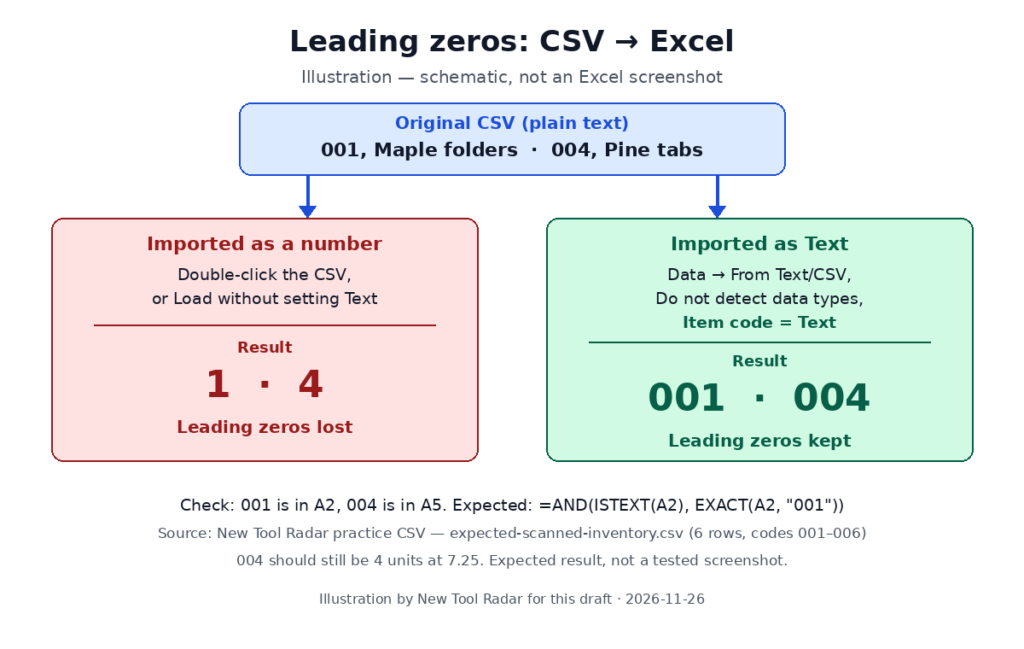
To keep leading zeros when you import a CSV into Excel with Power Query, set the Item code column to Text before Excel converts it to a number. In Excel for Windows, go to Data > From Text/CSV, and in the preview, when available, set Data Type Detection to Do not detect data types, then choose Transform Data. If you do not see that option, use the Changed Type step below. That keeps 001 as the three-character text 001, instead of the number 1.
OCR is only where this CSV came from. This guide is about the import step, not about extracting the table from a PDF. If you need the extraction step first, see Convert Multi-Page Scanned PDF Tables to Excel.
Check the CSV before you open it in Excel
Open the file in a plain-text editor such as Notepad or TextEdit — not in Excel yet — and confirm the codes are still written with their zeros. Download the six-row practice CSV and check it first.
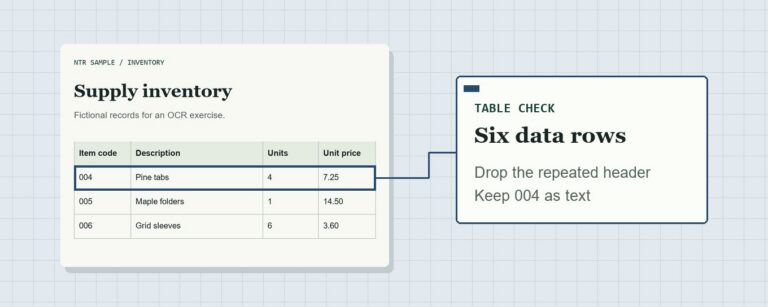
The practice file has six data rows:
Item code,Description,Units,Unit price
001,Maple folders,3,14.50
002,Cedar labels,5,2.05
003,Birch envelopes,2,8.10
004,Pine tabs,4,7.25
005,Maple folders,1,14.50
006,Grid sleeves,6,3.60
If 001 and 004 are already missing from that plain-text file, the zeros were lost before Excel. Re-export or re-fetch the CSV from the original system or backup. Do not try to guess them back in Excel.
Import the CSV as Text in Power Query
These steps are for Excel for Windows. Menu names can differ slightly by version, so follow the idea if a label is a little different.
- Open a blank workbook in Excel. Do not double-click the CSV file.
- Go to Data > From Text/CSV, choose the practice CSV, and choose Import.
- In the preview, look for Data Type Detection. If you see it, choose Do not detect data types. Microsoft’s Power Query Text/CSV documentation says you can turn off automatic data type detection and let all columns default to Text, and warns that inference can be incorrect, so double-check settings before loading.
- Choose Transform Data to open the Power Query editor. Do not choose Load yet.
- If there is no Data Type Detection dropdown in your preview, open Applied Steps and look for an automatic Changed Type step. If that step already turned
Item codeinto a number, remove or replace that conversion on the step where the original values are still present, then set the type explicitly in the next step. Do not add a Text conversion after a number conversion and expect it to bring the zeros back — by then the zeros are already gone from the loaded values. - Select the
Item codecolumn. Set its data type to Text. SetUnitsto Whole Number andUnit priceto Decimal Number separately, so only the code column is treated as text. - Choose Close & Load.
Do not rely on the Change Column Type dialog’s Replace Current prompt alone, and do not rely on left alignment alone to judge the result. Left-aligned text is a hint, not proof. Use the checks below.
Check the result
Expected result. We checked the practice CSV and Microsoft’s documentation. We did not run this import in Excel. The checks below are what to expect if the import worked; run them yourself on the practice CSV.
| Cell | Expected | How to check |
|---|---|---|
| A2 | 001, as text | =AND(ISTEXT(A2),EXACT(A2,"001")) should be TRUE |
| A5 | 004, as text | =AND(ISTEXT(A5),EXACT(A5,"004")) should be TRUE |
| 004, Units | 4 | The Units value on the 004 row (Pine tabs) |
| 004, Unit price | 7.25 | The Unit price value on the 004 row (Pine tabs) |
| Row count | 6 data rows | Codes 001 to 006, one header row |
If A2 does not show 001, the result did not keep the zero. First check the original CSV, then go back to Applied Steps and find the earliest step where the zero was lost. Close the workbook without saving over the original file, and re-import it with the steps above.
If the zeros are already gone
There are three different cases. Do not mix them up.
Case 1: The original CSV still has the zeros
Re-import the CSV with the steps above.
Case 2: The codes are a known fixed length, and the numbers lost no precision
In this practice file the codes are always three digits, and 1 came from 001 with no precision lost. You can build a new padded text value in a spare column with the TEXT function:
=TEXT(A2,"000")
That turns the number 1 into the text 001. It does not retrieve an unknown original value — it only pads a number you already know should be three digits long. A custom format of 000 is different again: applied to the existing number 1, it displays 001, but the stored value is still the number 1. It changes the display, not the underlying number, and it does not restore the original text.
Case 3: The original width is unknown, variable, or over 15 digits
Do not guess. If the width is unknown, or the conversion already lost significant digits, padding cannot restore them. If you do not know whether a code was 001, 0001, or something else, or if the code is longer than Excel’s 15-digit precision and digits were rounded to zero, re-fetch the data from the original CSV, the source system, or a backup. A format or a formula cannot recover information that is no longer there. For IDs of 16 digits or more, use Text from the start.
Limits
- Double-clicking a CSV does not always strip zeros in every Excel version and setting. Microsoft describes automatic removal as the default behaviour, and Excel for Microsoft 365 and Excel 2024 offer an Automatic Data Conversions setting that can change it. Check your own file with the checks above instead of assuming what happened.
- This guide covers only the import step. It does not fix OCR misreads, merged cells, or a table Power Query did not detect. For the extraction step, see Convert Multi-Page Scanned PDF Tables to Excel. If your CSV came from a scanned PDF and a code already looks wrong in the plain-text file, first check whether the PDF page has a usable text layer in How to Check Whether a PDF Needs OCR.
- Excel has a maximum precision of 15 significant digits. Codes of 16 digits or more must be text from the start.
Sources
- Power Query Text/CSV connector — Microsoft Learn — turn off automatic data type detection and let all columns default to Text; inference can be incorrect, so double-check settings before loading; Transform Data or Load from the Navigator.
- Keeping leading zeros and large numbers — Microsoft Support — Excel automatically removes leading zeros; use Get & Transform (Power Query) to format a column as Text on import; custom formats do not restore zeros removed before formatting; 15-digit precision limit.
- TEXT function — Microsoft Support — TEXT(value, format_text) converts a number to text with a format code, for example =TEXT(1234,”0000000″) gives 0001234.
- Download the six-row practice CSV — New Tool Radar practice file, codes 001 to 006.