Make the check on the pages you actually need. In a mixed PDF, the cover can have selectable text while the invoice, diagram, or table is just an image.
Select, copy, and search
- Try to select a single word on the target page, not the whole image.
- Copy the text to a plain-text editor. Check whether the words, order, and punctuation survived.
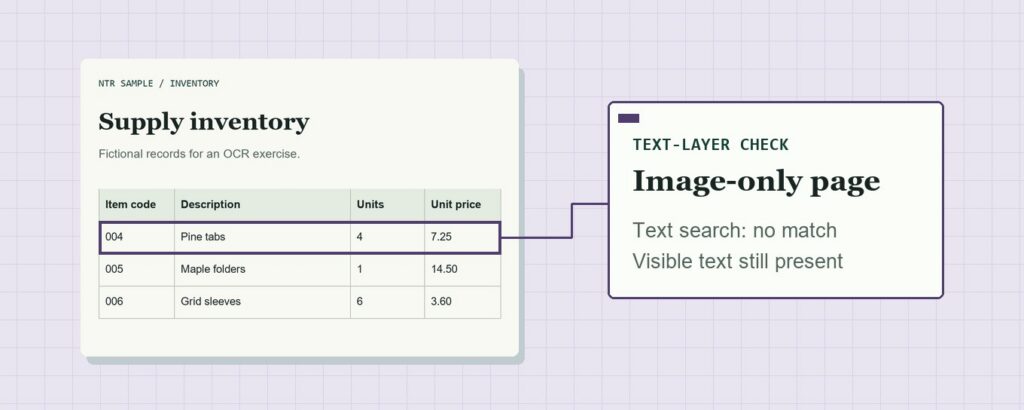
- Search within the PDF for an uncommon word visible on that page. A match elsewhere does not prove this page has a usable text layer.
On the practice PDF, the typed exercise notes are selectable on file page 2. The tables on file pages 3 and 4 are embedded images with no original text layer. Search is only a spot check: some viewers perform their own text recognition, even when an embedded text layer is absent.
What to do next
- Text copies cleanly: try the original PDF before introducing OCR errors.
- Some target pages fail: OCR those pages or use an application with page-level image reading. Keep the original file.
- Text copies in the wrong order: test the extraction task. A searchable PDF can still return columns in the wrong sequence.
If the material is private, check your permission and the application’s handling rules before uploading it. A synthetic sample is enough to test a workflow first.
Verify after OCR
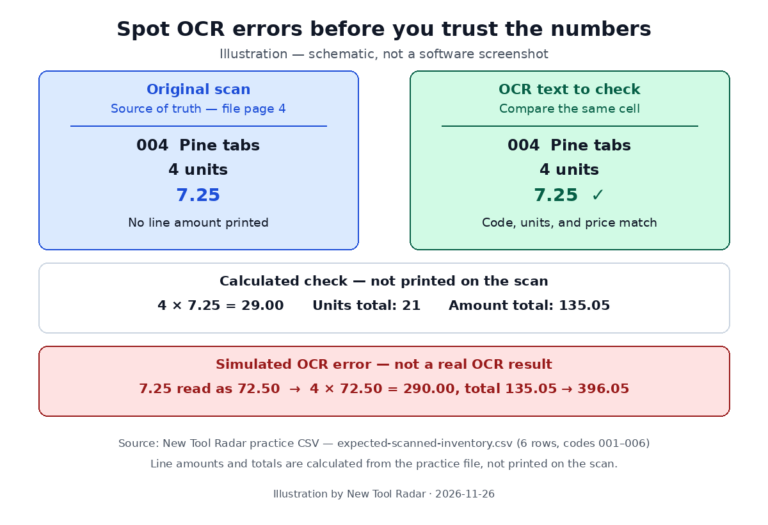
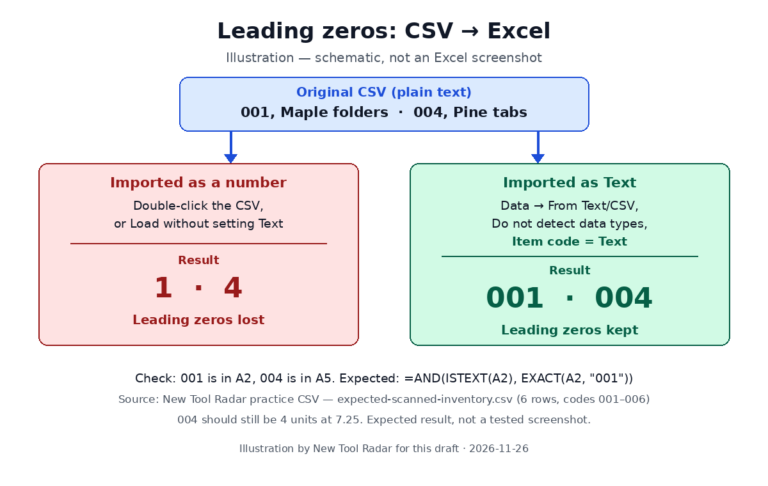
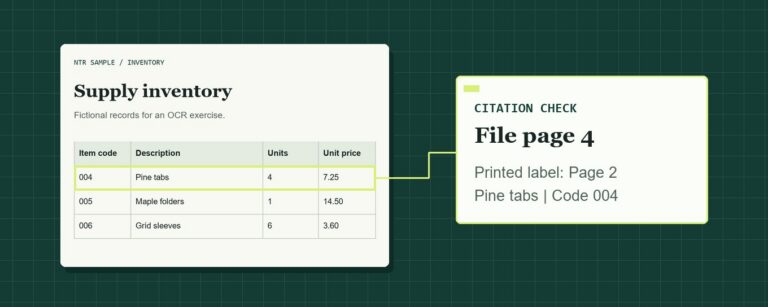
Repeat the select, copy, and search checks. For tables, check identifiers, decimals, and row counts. For answers with citations, open the cited page and confirm it contains the supporting information.
Continue with scanned table conversion or page citation checks.